Containers and Docker, explained
From a twenty line recipe to an identical process running on any machine on earth — images, layers, registries, isolation, and the end of works on my machine.

Developer laptop
It starts with the oldest excuse in software: it works on my machine. Your laptop has a particular Python, a particular library and one environment variable you set six months ago and forgot. Containers exist to end that sentence for good.
The Dockerfile
A Dockerfile is a plain text recipe, often under twenty lines. Start from this base, copy these files, install these packages, run this command. Anyone who reads it can rebuild your exact environment, and that reproducibility is the real trick here.
Base image
The bottom layer is somebody else's finished work: a stripped down Linux like Alpine, under ten megabytes unpacked, or a full Ubuntu around eighty. You are not shipping a whole computer, only the small userland your program needs, because the kernel underneath is already there.
Docker build
The build command runs your recipe one instruction at a time, and every step that touches the filesystem becomes a new cached layer. Change the last line and the rebuild takes seconds. Change the first line and every layer below it is thrown away and built again.

Read only layers
Layers stack like transparencies and every one of them is read only. Ten images built on the same base store that base exactly once on disk, which is why your second pull from a registry is usually far faster than your first.

The finished image
The image is that finished stack, frozen. It is not running and it never changes: same files, same versions, forever. Think of it as a photograph of a working machine rather than the machine itself, which is why it travels so well.
Tag and digest
Every image gets a human tag and a machine fingerprint. Tags can move, so the word latest is a lie waiting to happen, but the digest is a long hash that points at exactly one set of bytes and can never point anywhere else.
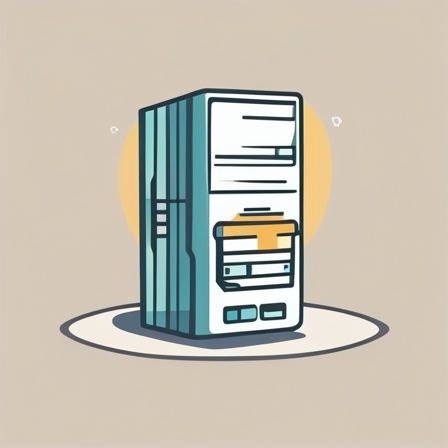
Image registry
A registry is a warehouse for images. You push once and any machine on earth pulls the identical bytes. Docker Hub alone serves billions of pulls a month, and most companies also run a private registry for their own code.
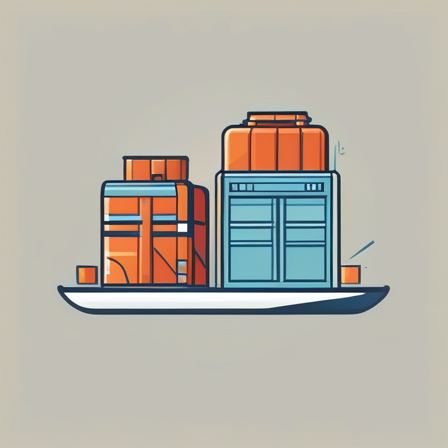
Server pulls the image
The server downloads only the layers it does not already have. If it is already running three services built on the same base, the new one might be a fifteen megabyte download instead of four hundred, which is why deploys got fast.

A running container
Run the image and you get a container: a live process started from that frozen photograph. It launches in tens of milliseconds because nothing is booting. It is just your program, started with a very carefully arranged view of the world.

Namespaces and limits
That view comes from two Linux features. Namespaces give the process its own private list of processes, its own network and its own filesystem root. Control groups cap how much memory and processor time it is allowed to take.
One shared kernel
Here is the difference from a virtual machine. A virtual machine carries an entire guest operating system, gigabytes of it, and boots for half a minute. Containers share the host kernel and start in a moment, but the walls between them are drawn by that one kernel rather than by virtual hardware, which is a thinner boundary.
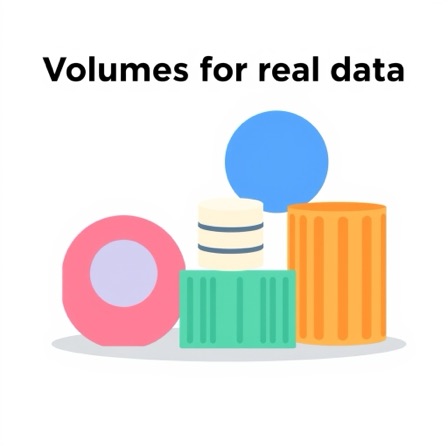
Volumes for real data
Containers are meant to be disposable, and anything written inside one vanishes when it stops. Real data lives in a volume mounted from outside, which is why a database in a container needs more thought than a stateless web app does.
Published ports
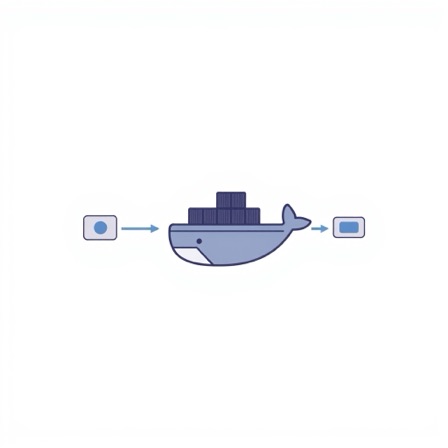
By default nothing inside is reachable. You explicitly publish a port, mapping one on the host to one in the container, and Docker wires the traffic through. Two containers can both listen on port eighty and never once collide.
Every machine identical
So the same image runs on your laptop, in the test pipeline and in production, byte for byte identical. The excuse dies, and the unit you hand to other people stops being a page of setup instructions and becomes an actual thing.
Watch it explain itself
Every step above is narrated aloud. Play it, or open it in the editor and make it yours — no account needed.